Browsing Galleries and Viewing Photos in Folio
View your SmugMug galleries in grid or masonry layout, navigate the full-screen photo viewer, edit metadata, search with advanced filters, and explore your photos on an interactive map.
Once you have connected your SmugMug account and synced your library, Folio makes it easy to browse galleries, view photos at full resolution, inspect and edit metadata, and search across your entire collection.
Gallery Grid View
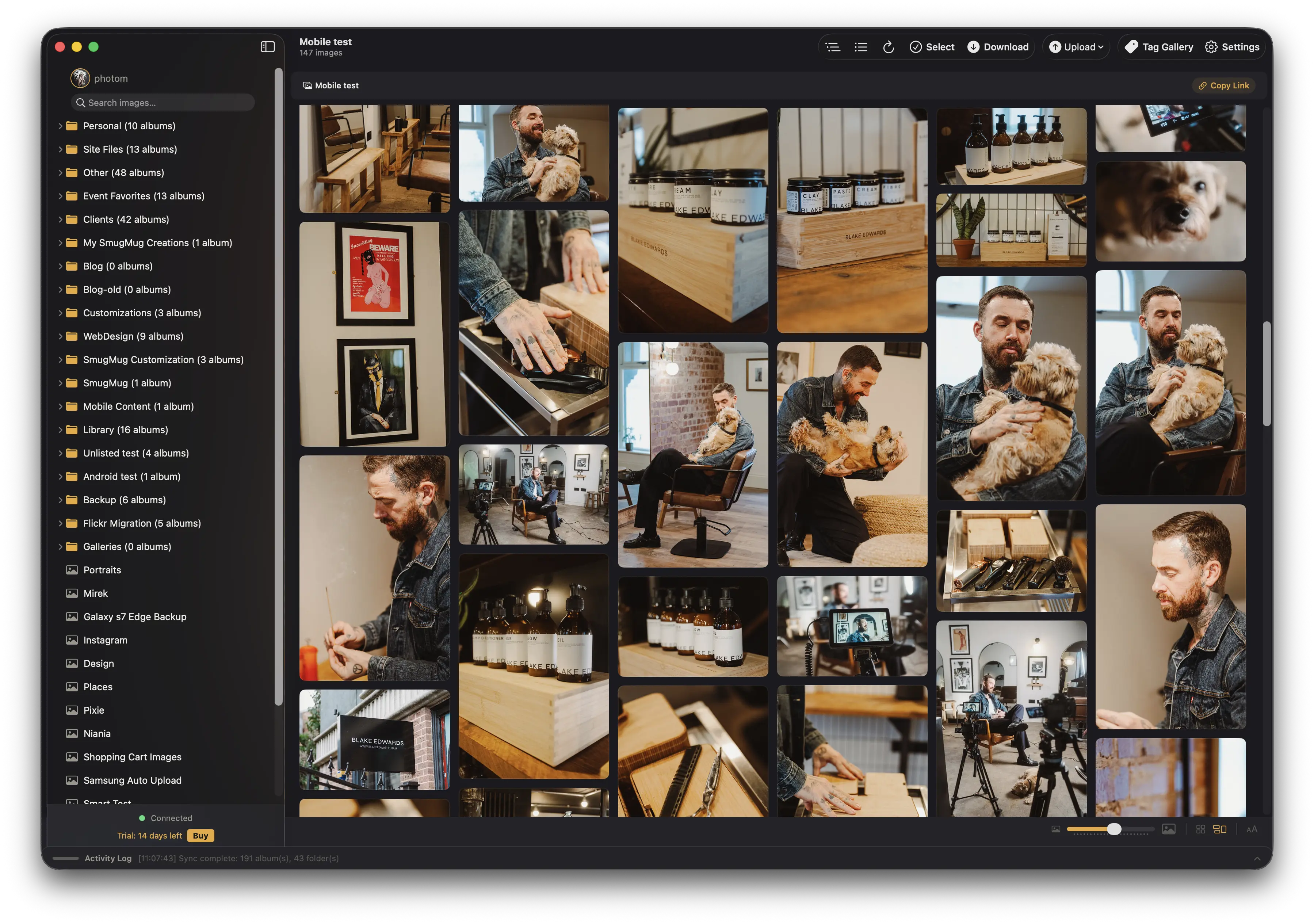
Select any gallery in the sidebar to display its contents as thumbnails in the main area. The grid automatically adjusts to fill the available space.
Adjusting Thumbnail Size
Use the slider at the bottom-right corner of the window to control thumbnail size. Drag left to make thumbnails smaller or right to make them larger.
Layout Options
Two buttons next to the size slider let you switch between layout modes:
- Grid — Uniform square thumbnails arranged in neat rows and columns.
- Masonry — Variable-height thumbnails that preserve each photo's original aspect ratio, similar to a Pinterest-style layout.
Show or Hide Filenames
Click the text button next to the layout icons to toggle filename labels beneath each thumbnail.
Photo Viewer
Click any thumbnail to open it in a full-screen lightbox.
Navigate between photos
Move your mouse to reveal left and right arrows at the edges of the screen, or use the Left Arrow and Right Arrow keys on your keyboard. Photos load progressively — a preview appears first, followed by a higher-resolution version.
Zoom and pan
Use the scroll wheel to zoom in and out, then click and drag to pan around the image. You can also use the zoom slider at the bottom-right corner. Two additional buttons are available:
- Fit — Scales the photo to fit the window.
- Actual Size — Displays the photo at 1:1 pixel resolution.
Watch videos
Video files play inline with standard playback controls. Click the play button to start playback.
Return to the gallery
Click the Back button (which displays the gallery name) or press Escape. The gallery view scrolls automatically to center on the photo you were viewing.
Image Info Panel
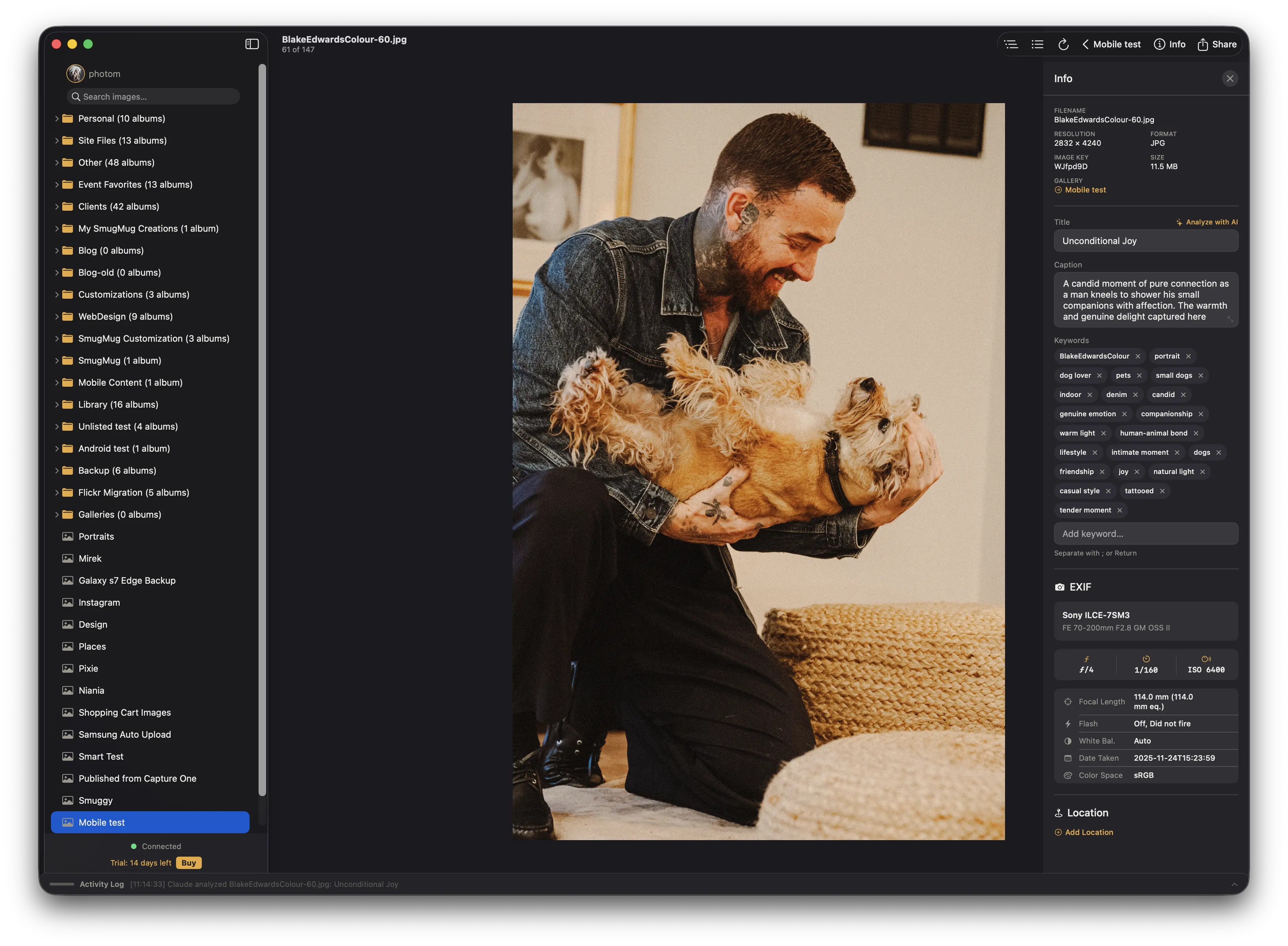
Press Cmd+I or click the Info button to open a panel on the right side of the photo viewer.
Editable Metadata
You can edit the following fields directly in the info panel:
- Title — Click to edit, then save.
- Caption — Click to edit, then save.
- Keywords — Uses a pill-style interface. Type a keyword and press Enter to add it. Click the X on any pill to remove it.
Click Save to push your changes back to SmugMug.
EXIF Data
The info panel displays technical details captured by your camera, including camera model, lens, focal length, aperture, shutter speed, ISO, flash status, date taken, image dimensions, file size, and color space.
Location
If a photo contains GPS coordinates, an interactive map appears in the info panel. You can edit the latitude and longitude values manually, or click the map to explore the surrounding area.
AI Tools
Buttons at the bottom of the info panel let you auto-tag or auto-caption the current photo using built-in AI features. See AI-Powered Metadata for details.
Searching Your Photos
Use the search field at the top of the sidebar to find photos across your entire library. Type a search term and press Enter. Results appear in the main area with the same grid and masonry layout options available.
The source gallery name is displayed below each thumbnail so you know where each photo lives.
Right-click any search result and select Go to Gallery to navigate directly to that photo's gallery.
You can also enter Select Mode from search results to select and download photos from across multiple galleries at once.
Advanced Search
Advanced Search builds on the basic sidebar search with client-side filtering that lets you slice results in ways SmugMug's API doesn't support on its own. After the server returns results, you can narrow them further without re-querying.
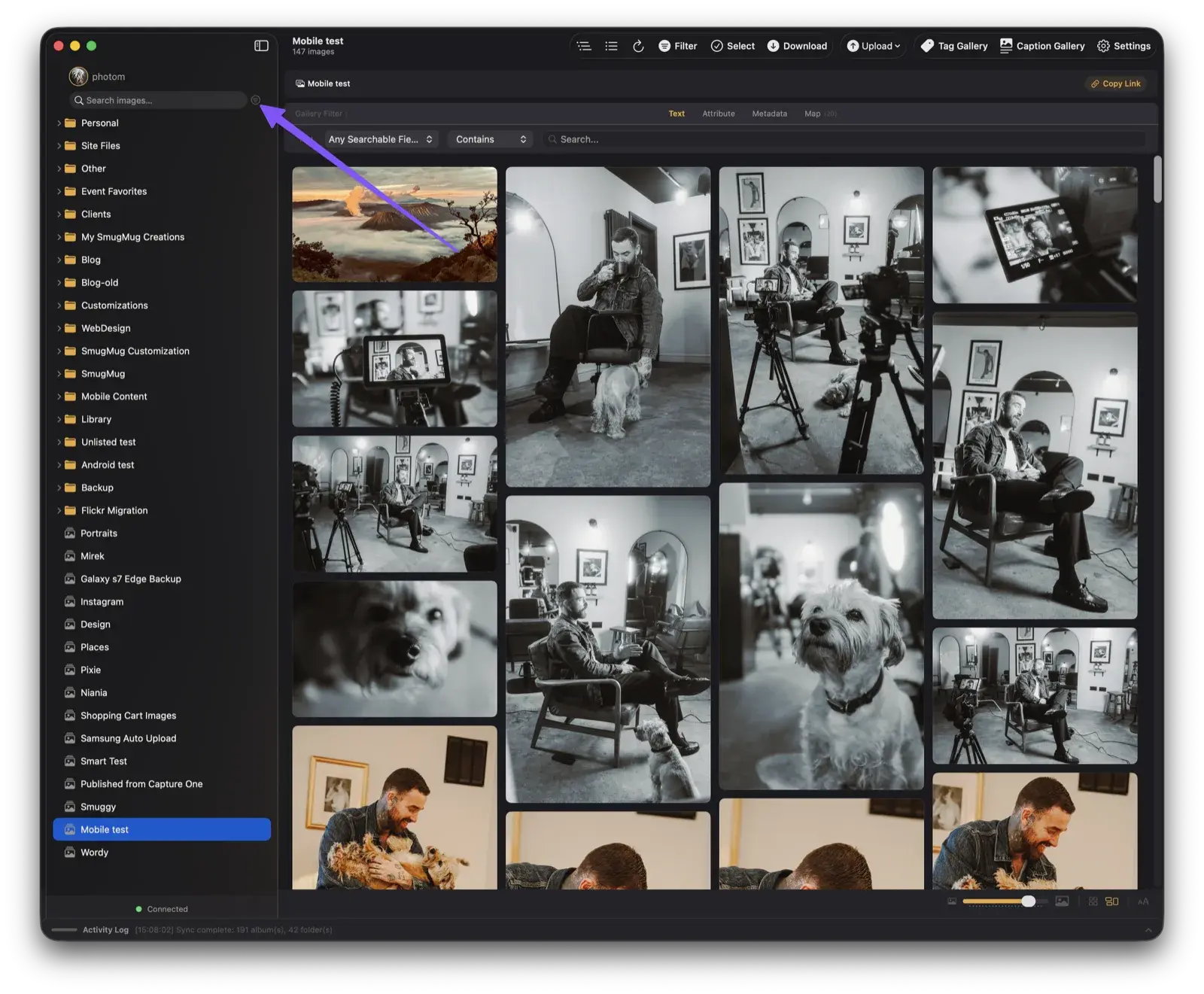
The Advanced Search filter bar sits between the header and the content area and is always visible on the search page. It has four tabs: Text, Attribute, Metadata, and Map. Click a tab to expand its controls. An orange dot on a tab indicates it has active filters.
Text Tab
The Text tab gives you fine-grained control over how your search query is matched:
- Field — choose which field to search: Any (the default, same as basic search), Title only, Caption only, Keywords only, or Filename only
- Match mode — choose how the query is matched:
- Contains All — every word in your query must appear (in any order)
- Contains — the exact phrase must appear
- Starts With — the field value must begin with your query
- Scope — restrict the search to a specific folder or gallery instead of your entire account
Attribute Tab
The Attribute tab filters results by file properties:

- File type — Photos, Videos, or Source (RAW files). Each option shows a count of matching results.
- Orientation — Landscape, Portrait, or Square
- Metadata presence — toggle whether images have or are missing a Title, Caption, or Keywords. Each toggle cycles through three states: has → missing → off.
Metadata Tab
The Metadata tab filters by EXIF data extracted from your photos:
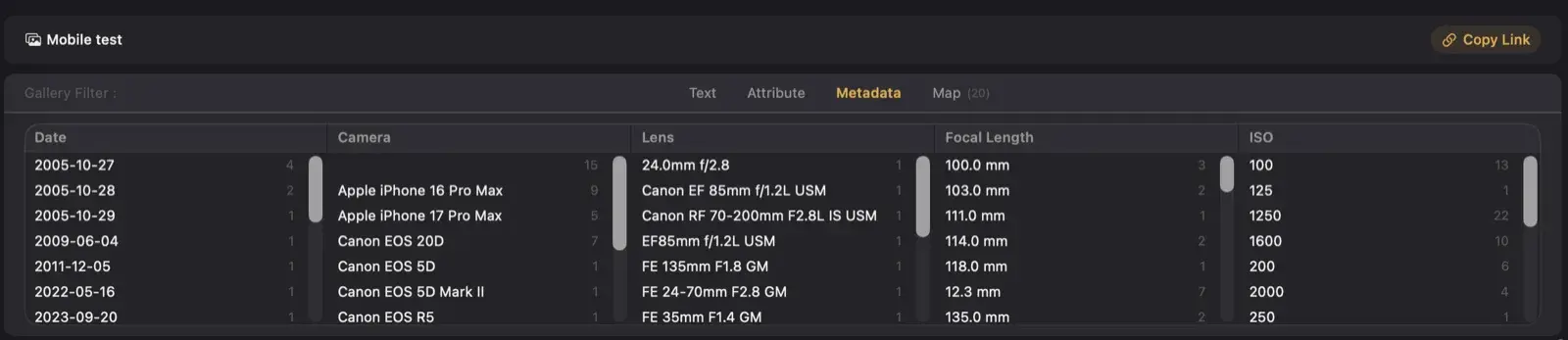
- Camera model — a list of distinct cameras found in the results, each with a count
- Lens — distinct lens values from EXIF
- Focal length — distinct focal lengths from EXIF
- ISO — distinct ISO values from EXIF
- Date — distinct dates (date taken from EXIF, not upload date)
Using Filters Together
All filters across all tabs are combinable. For example, you could search for "sunset" in the Caption field, then filter to Landscape orientation, shot on a specific Camera model, with Keywords present. Counts update live as you apply or remove filters.
Filters
The same filter bar used in Advanced Search is also available when browsing a gallery. Click the Filter button in the toolbar to toggle the filter bar above the gallery grid. It works exactly the same way — four tabs (Text, Attribute, Metadata, Map) with the same controls and live counts.
Filters are especially useful for large galleries. For example, you can quickly isolate all portrait-orientation photos, or find every image shot with a specific lens.
Map View
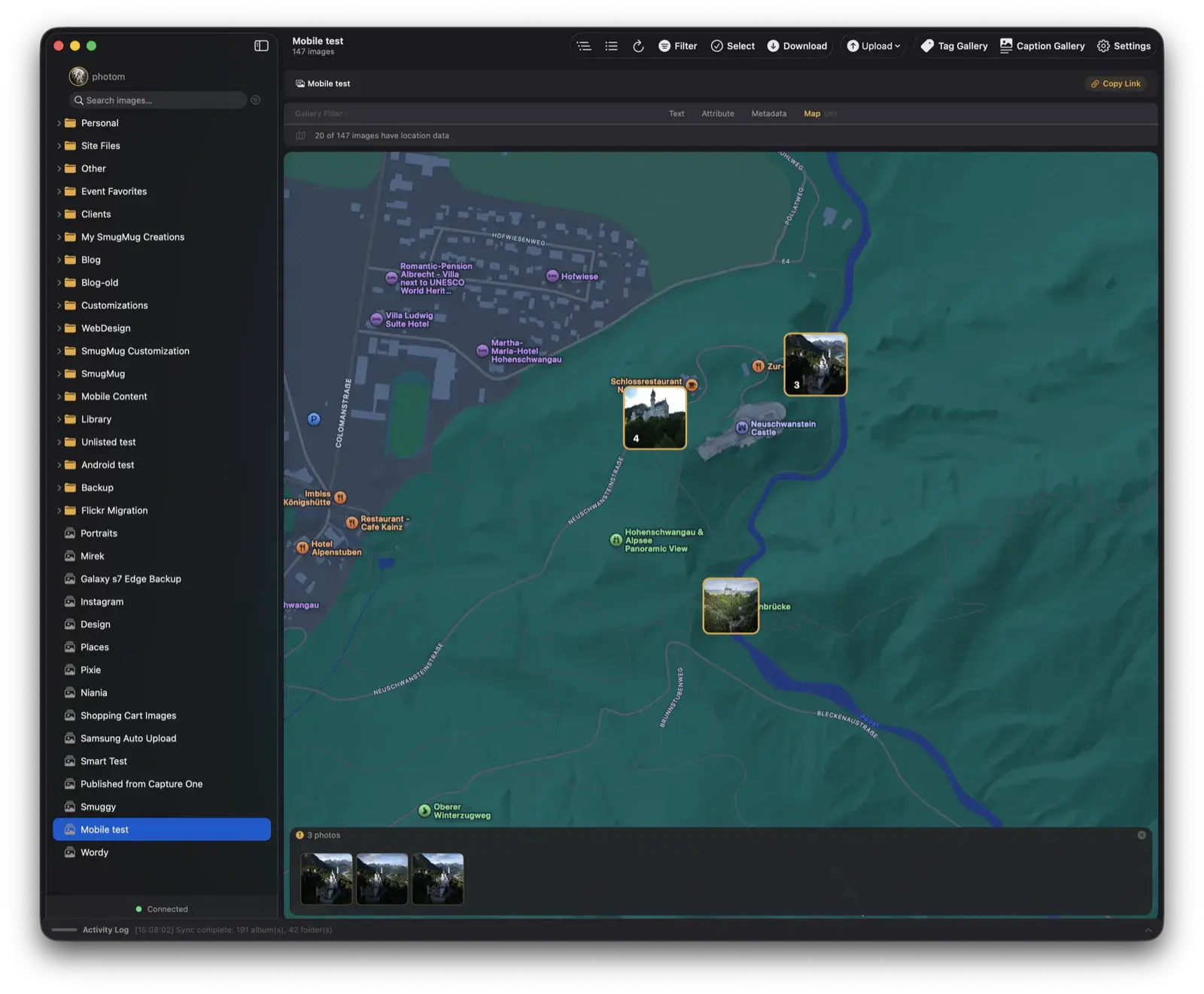
The Map tab in the filter bar replaces the image grid with a full interactive map powered by Apple Maps (MapKit). Every geotagged photo in the current gallery or search results appears as a thumbnail pin placed at the GPS coordinates where it was taken.
Clustering
As you zoom out, nearby pins cluster together automatically — each cluster shows a count badge and a representative thumbnail. Zoom in and the clusters split apart to reveal individual photos, similar to the map view in Apple Photos.
Interacting with the Map
- Click a single pin to open that photo in the lightbox
- Click a cluster to zoom into its members
- Pan and zoom using standard trackpad or mouse gestures
The map responds to all active filters from the other tabs. If you filter to a specific camera model or orientation, only matching geotagged photos appear on the map.
The Map view is separate from the per-photo location map in the Image Info Panel, which shows the GPS coordinates of a single photo. The Map view shows all geotagged photos in a gallery or search results on one map.
The Folio Interface — Sidebar, Toolbar, and Navigation
Explore the Folio interface including the sidebar folder tree, toolbar controls, menu bar extra, and breadcrumb navigation.
How to Download Photos and Videos from SmugMug with Folio
Download individual galleries, entire folders, or selected photos from SmugMug. Includes smart resume, progress tracking, and download reports.